Instagram leads,
straight into HubSpot.
When someone comments a keyword or sends you a DM, Chat33 asks for their email in the chat. Connect HubSpot once, and every email it collects becomes a HubSpot contact within seconds, in the list you choose.
Available on every plan, including Free. Workspace owners and admins can connect it.
What happens
- 1Someone comments AUDIT under your post
- 2Chat33 sends them a DM asking for their email
- 3They reply with their email address
- 4A HubSpot contact is created or updated, and added to your list
What you need
Three things, and you probably have the first one already.
A connected Instagram or Facebook account
An Instagram professional account (business or creator) or a Facebook Page, connected in Chat33 under Channels.
A flow with a Collect email step
The step asks for the email in a DM and waits up to 24 hours for the answer. It works with DM keyword triggers on Instagram and Facebook, and with comment triggers on Instagram. Asking after a Facebook comment is not available yet.
Access to HubSpot settings
You need to be allowed to create a service key or a private app in your HubSpot account. In Chat33, workspace owners and admins can connect integrations.
Connect HubSpot in six steps
Keep HubSpot and Chat33 open in two tabs. You copy one key from one to the other.
- 1
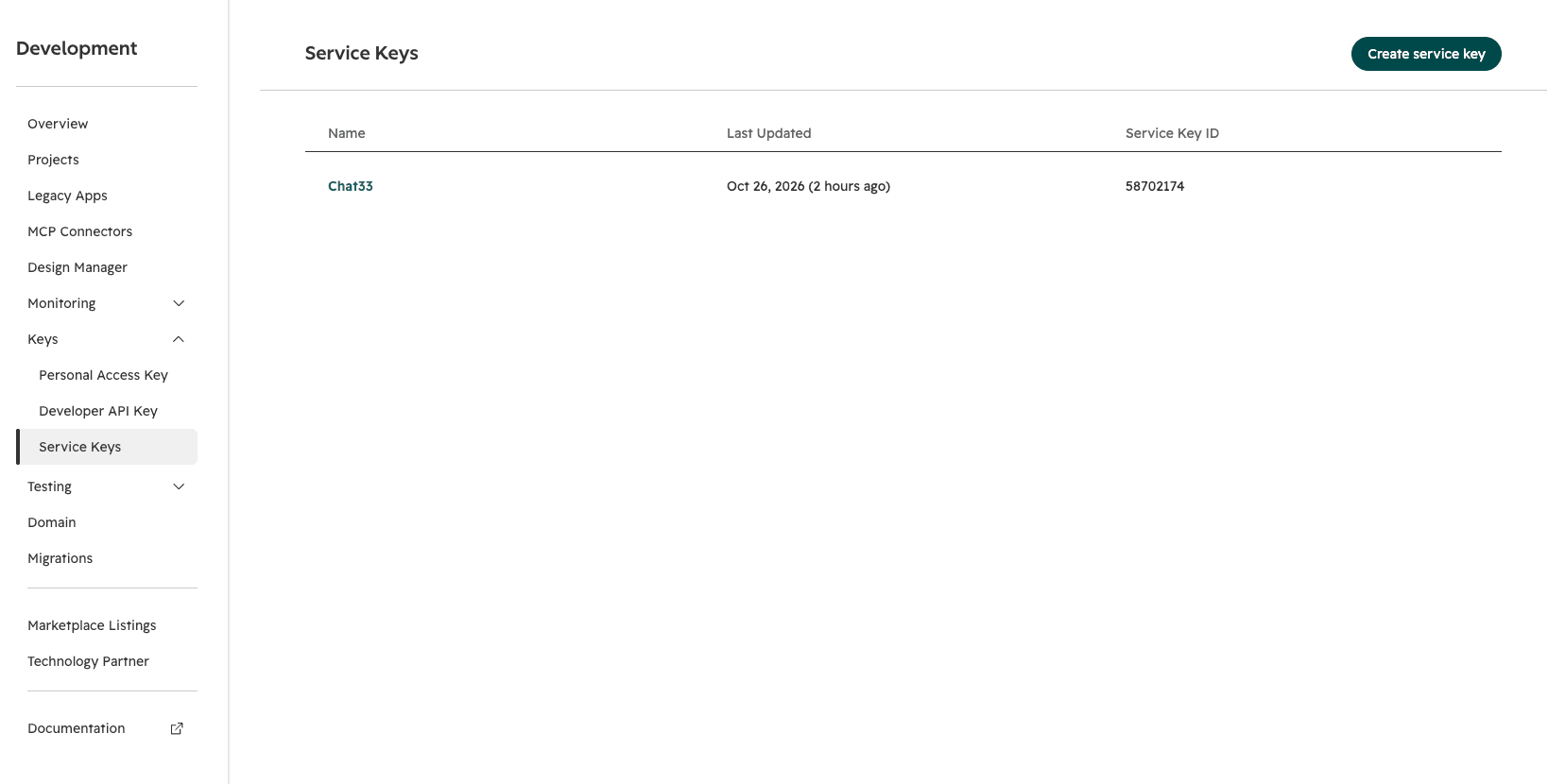
Create a service key in HubSpot
In HubSpot, open Settings, Integrations, Service keys and create a key named Chat33. Give it the scopes crm.objects.contacts.read and crm.objects.contacts.write. If you want leads added to a list, add crm.lists.read and crm.lists.write too. Copy the key. Older HubSpot accounts that still have private apps can create one under Settings, Integrations, Private apps with the same scopes and copy its access token instead.
- 2
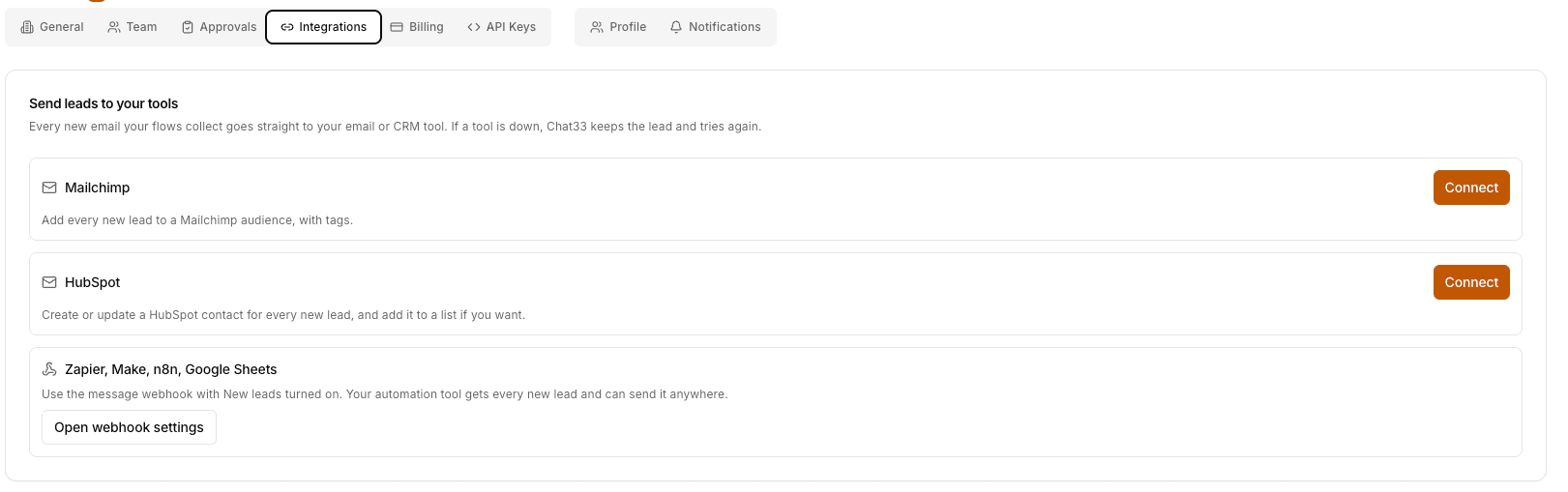
Open Integrations in Chat33
In Chat33, go to Settings, Integrations. Under Send leads to your tools, click Connect next to HubSpot.
- 3
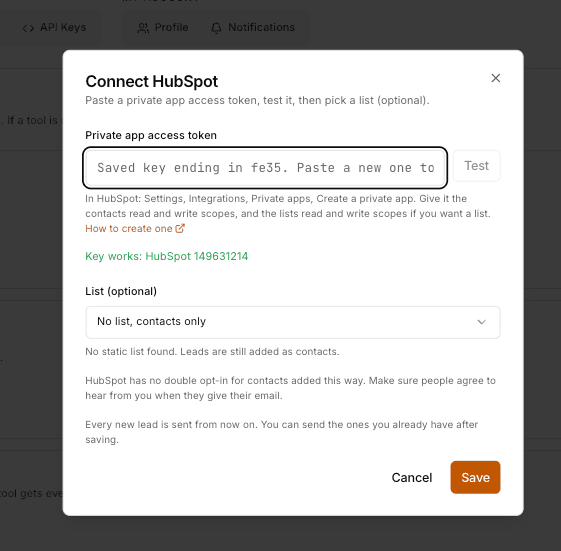
Paste the key and test it
Paste the service key or access token and click Test. When it works, you see your HubSpot account ID, and Chat33 loads your static lists.
- 4
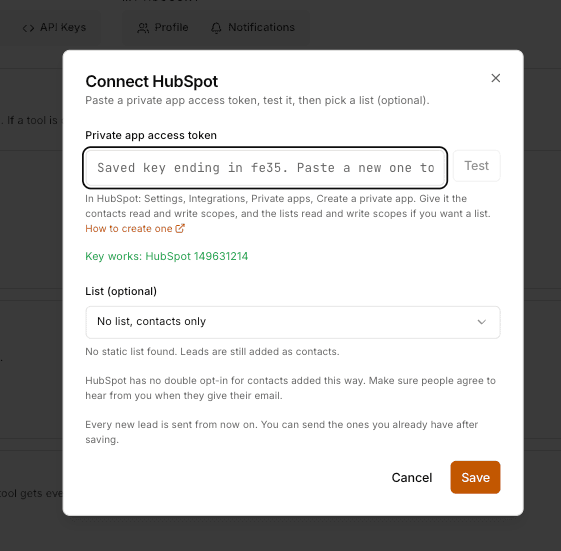
Pick a list, or none
Choose a static list if you want every new lead added to it, or keep No list, contacts only. Only static lists appear here, because HubSpot fills active lists by itself. Click Save.
- 5
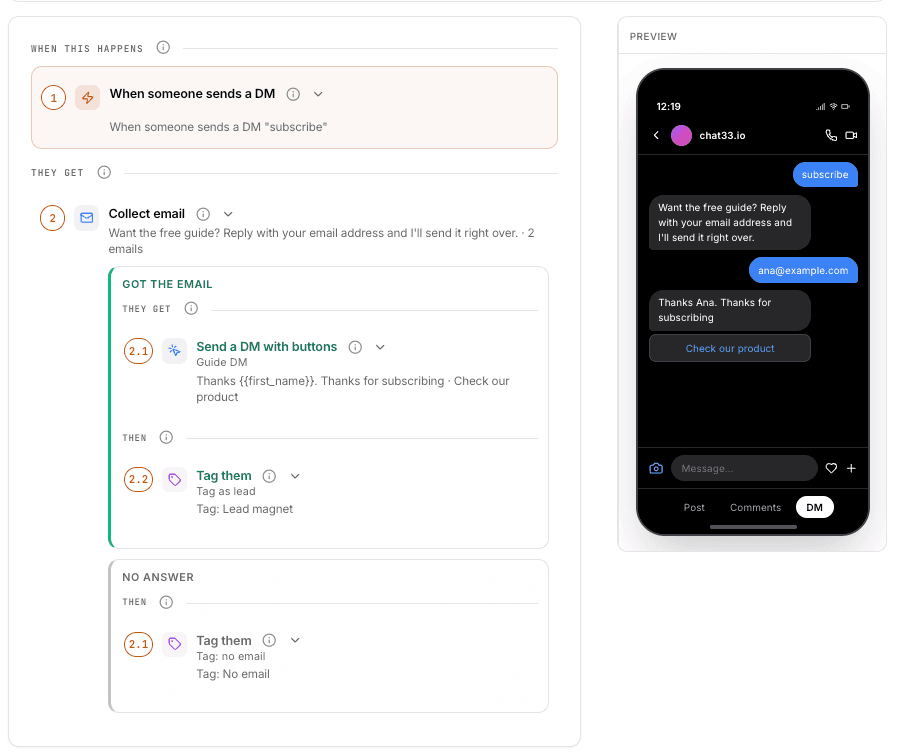
Add a Collect email step to a flow
Open a flow, add the Collect email step and write the question. Say what they get for their email, for example the audit, the price list or a call slot. When the flow starts from an Instagram comment, put the step before any other DM. Switch the flow on.
- 6
Check that leads arrive
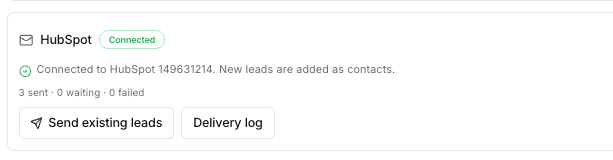
Test the flow from a second Instagram account. The HubSpot card shows how many leads were sent, are waiting or failed, and Delivery log lists the last 50. The contact shows up in HubSpot under Contacts, and in your list if you picked one.
What Chat33 sends to HubSpot
Only what the person gave you in the chat.
- The address they wrote in the DM. HubSpot finds the contact by email: if it exists it is updated, if not it is created. No duplicates.
- firstname, lastname
- From their Instagram or Facebook name when it looks like a real name, also on a contact that already exists. If all we know is their handle, nothing is sent for the name.
- List membership
- When you picked a static list, the contact is added to it.
HubSpot has no double opt-in for contacts added this way. Make sure people agree to hear from you when they give their email.
Your options
The list can be changed later from the card's Settings button.
Static list (optional)
Every new lead is added to the list you pick. Use it as the starting point for a HubSpot workflow, a follow-up sequence or a view your sales team checks every morning.
Contacts only
Without a list, leads are still created or updated as contacts. If the key cannot read lists, the dialog says so and tells you which scopes to add.
No duplicates
Contacts are matched by email address. Someone who gives you their email twice, or is already in HubSpot from a form or a call, stays one contact.
Consent
Say in your Collect email question what people get and that you will follow up. HubSpot does not send a confirmation email for contacts added this way.
Leads you already have
Send existing leads
Leads you collected before connecting HubSpot are not sent on their own. Click Send existing leads on the HubSpot card and they go out over the next few minutes. Contacts that already exist are updated, never added twice.
When something goes wrong
Chat33 keeps every lead, so fixing the connection is enough. Nothing has to be collected again.
HubSpot says Legacy apps aren't available on this account
Newer HubSpot accounts cannot create private apps. Create a service key instead, under Settings, Integrations, Service keys. Chat33 accepts both a service key and a private app access token.
The card says Needs attention
HubSpot stopped accepting the connection, usually because the key was deleted or rotated, a scope was removed, or the list was deleted. New leads wait in Chat33 and the workspace owner gets an email. Click Fix, paste a working key or pick a list, and the waiting leads go out. Leads wait for up to 7 days.
The key is missing a permission
Add crm.objects.contacts.read and crm.objects.contacts.write to the service key or private app, and crm.lists.read and crm.lists.write if you use a list. Then test again in Chat33.
No list to pick
Either the key has no list scopes, or the account has no static list for contacts. Leads are still added as contacts. To use a list, add the list scopes or create a static list in HubSpot, then test again.
A lead shows as Failed
HubSpot refused that one address, for example because it is not a valid email. Other leads keep going. Leads that failed for a passing reason are retried on their own, and Retry failed sends them again right away.
Nobody was asked for an email
Check the flow. It must be switched on, and when it starts from an Instagram comment, the Collect email step must come before the first DM. Asking after a Facebook comment is not available yet.
Questions about the HubSpot integration
- Which Chat33 plans include the HubSpot integration?
- Every plan, including Free.
- Service key or private app token: which one do I need?
- Either works. Newer HubSpot accounts only offer service keys (Settings, Integrations, Service keys). Older accounts can still use a private app access token, which starts with pat-. Both need the contacts read and write scopes, plus the lists scopes for a list.
- Does it work with comments or only with DMs?
- Both on Instagram: a comment keyword or a DM keyword can start the flow that asks for the email. On Facebook it works with Messenger keyword triggers. Asking for an email after a Facebook comment is not available yet.
- How fast do leads arrive in HubSpot?
- Usually within seconds of the person sending their email. If HubSpot is slow or down, Chat33 keeps the lead and tries again.
- Does Chat33 create deals or tasks in HubSpot?
- No. It creates or updates the contact, and adds it to a list if you picked one. A HubSpot workflow can create the deal, the task or the follow-up email from there.
- Can I see which post or keyword a lead came from?
- In Chat33, Contacts, Leads shows the flow, keyword and post for every lead, and can be filtered by flow. HubSpot gets the email and the name. Using a separate list for Instagram leads makes them easy to find in HubSpot.
- What happens if I disconnect HubSpot?
- New leads stop going there, and the saved key and delivery log are deleted. Contacts already sent stay in HubSpot, and every lead is still listed in Chat33 under Contacts, Leads.
Turn comments into
HubSpot contacts.
Create a free account, connect Instagram, add a Collect email step and connect HubSpot.