Instagram leads,
straight into Mailchimp.
When someone comments a keyword or sends you a DM, Chat33 asks for their email in the chat. Connect Mailchimp once, and every email it collects is added to your audience within seconds, with the tags you choose.
Available on every plan, including Free. Workspace owners and admins can connect it.
What happens
- 1Someone comments LIST under your post
- 2Chat33 sends them a DM asking for their email
- 3They reply with their email address
- 4They join your Mailchimp audience, tagged
What you need
Three things, and you probably have the first one already.
A connected Instagram or Facebook account
An Instagram professional account (business or creator) or a Facebook Page, connected in Chat33 under Channels.
A flow with a Collect email step
The step asks for the email in a DM and waits up to 24 hours for the answer. It works with DM keyword triggers on Instagram and Facebook, and with comment triggers on Instagram. Asking after a Facebook comment is not available yet.
A Mailchimp audience
Your Mailchimp account needs at least one audience. In Chat33, workspace owners and admins can connect integrations.
Connect Mailchimp in six steps
Keep Mailchimp and Chat33 open in two tabs. You copy one key from one to the other.
- 1
Create a Mailchimp API key
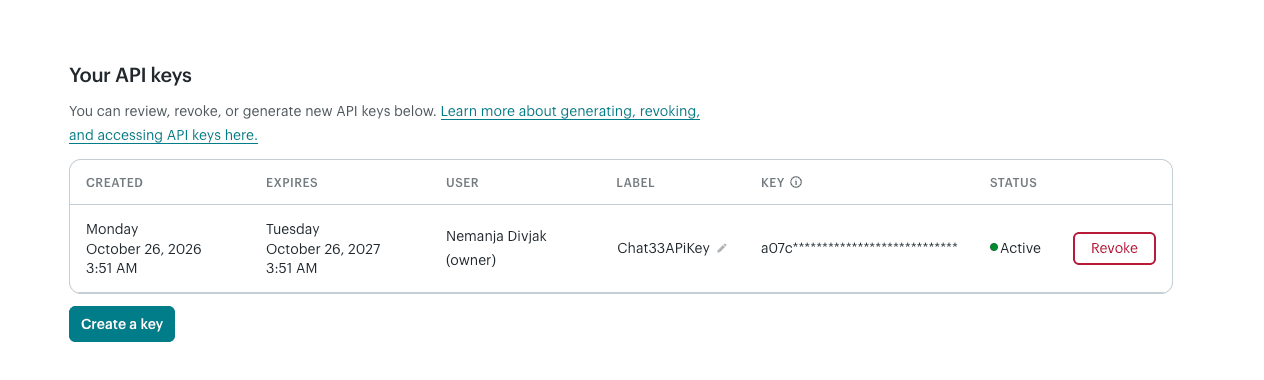
In Mailchimp, click your profile icon and open Profile, then Extras, API keys. Click Create A Key, name it Chat33 and copy the key. Mailchimp shows the full key only once, so paste it somewhere safe or straight into Chat33.
- 2
Open Integrations in Chat33
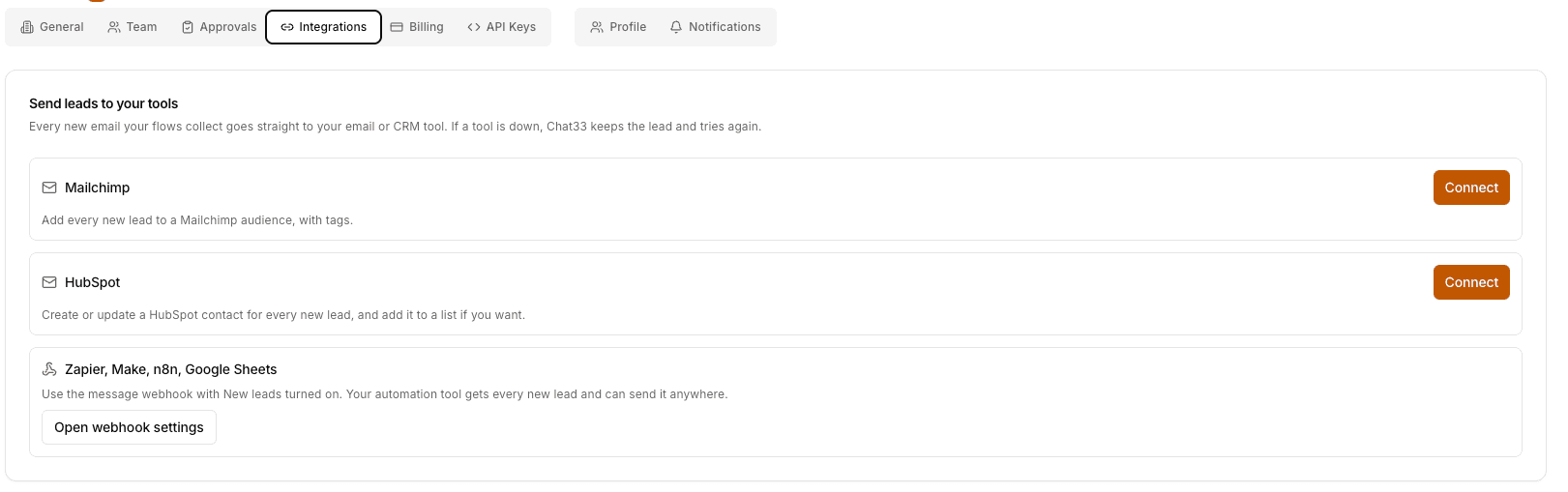
In Chat33, go to Settings, Integrations. Under Send leads to your tools, click Connect next to Mailchimp.
- 3
Paste the key and test it
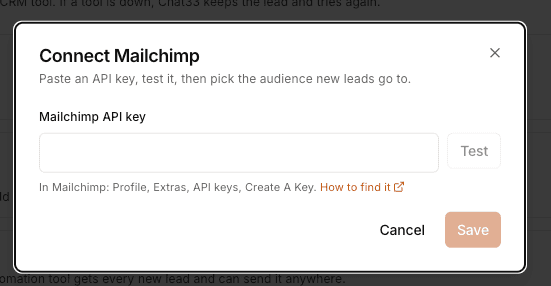
Paste the API key and click Test. When the key works, you see the name of your Mailchimp account, and Chat33 loads your audiences.
- 4
Pick the audience and options
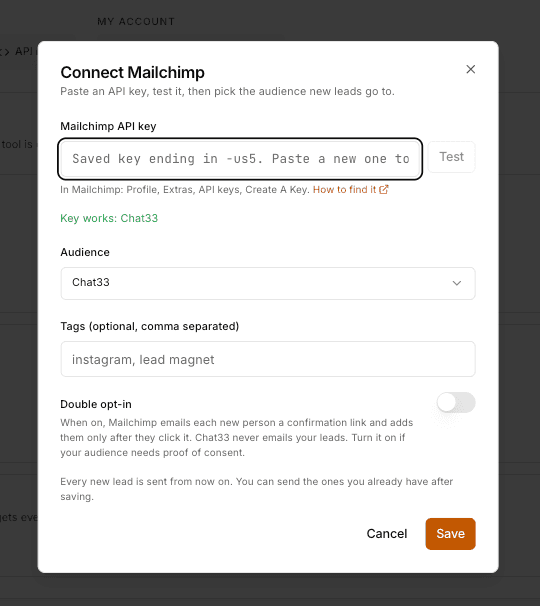
Choose the audience new leads go to. Add tags if you want them (comma separated, up to 10), and turn on double opt-in if your audience needs proof of consent. Click Save.
- 5
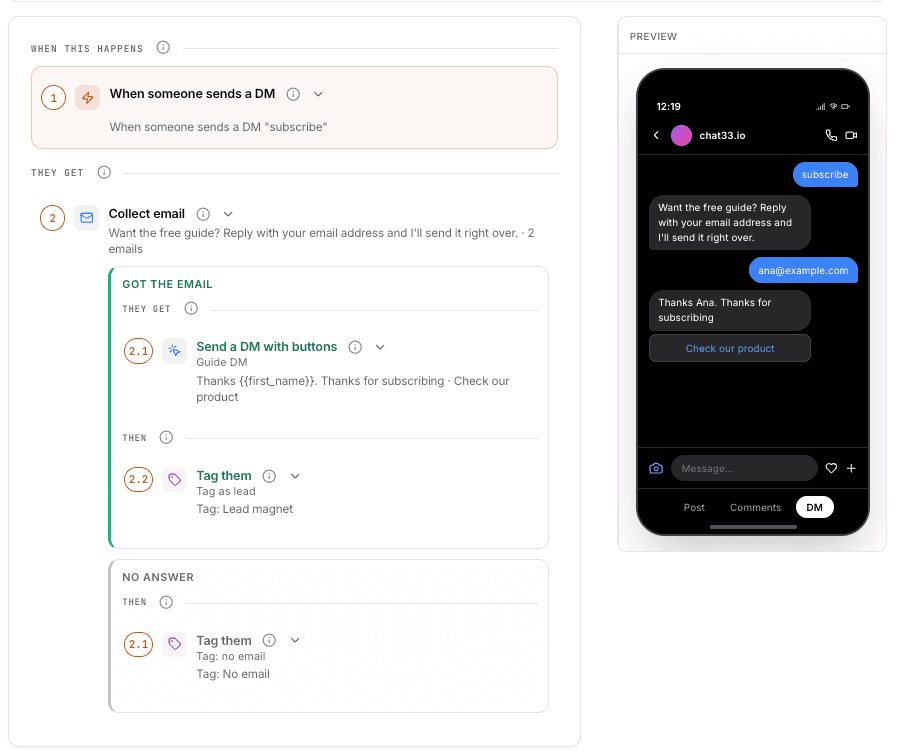
Add a Collect email step to a flow
Open a flow, add the Collect email step and write the question. Say what they get for their email, for example the guide or the discount code. When the flow starts from an Instagram comment, put the step before any other DM. Switch the flow on.
- 6
Check that leads arrive
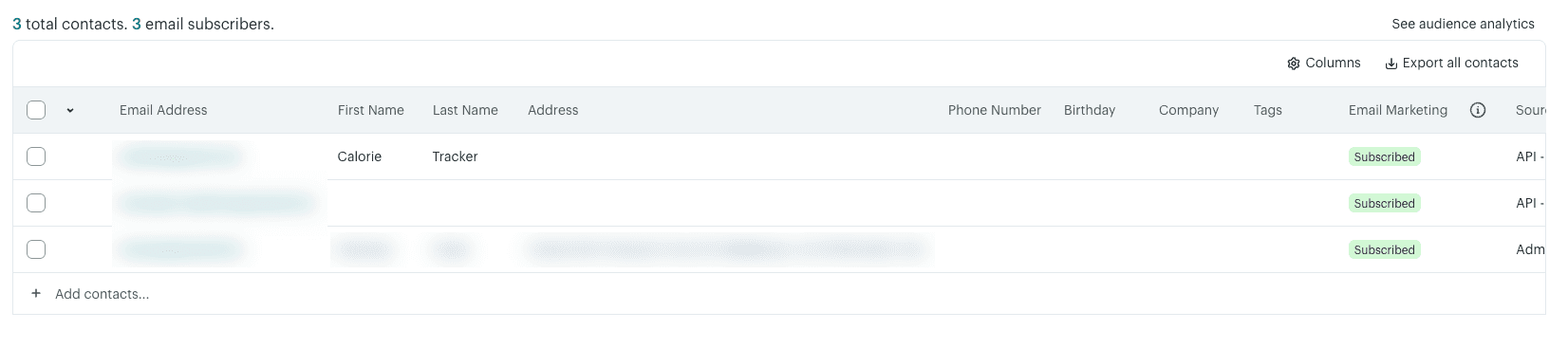
Test the flow from a second Instagram account. The Mailchimp card shows how many leads were sent, are waiting or failed, and Delivery log lists the last 50. The new contact shows up in your Mailchimp audience.
What Chat33 sends to Mailchimp
Only what the person gave you in the chat, and the tags you chose.
- Email address
- The address they wrote in the DM. Mailchimp identifies contacts by email, so the same person is never added twice.
- FNAME, LNAME
- First and last name, from their Instagram or Facebook name when it looks like a real name. If all we know is their handle, the name stays empty. Sent only when your audience has these fields.
- Tags
- The tags you set on the connection, added to every lead it sends.
- Status
- Subscribed, or Pending when double opt-in is on. Someone already in your audience keeps the status they have.
Chat33 never emails your leads. Every email they get comes from Mailchimp, from the automations you set up there.
Your options
All of them can be changed later from the card's Settings button.
Audience
Every new lead from every flow in the workspace goes to the audience you pick. To use another one, open Settings on the card and choose it.
Tags
Added to every lead this connection sends. Use a tag to start a Mailchimp automation, such as a welcome email when the tag instagram is added, or to find these contacts later.
Double opt-in
When it is on, Mailchimp emails each new person a confirmation link and adds them only after they click it. Until then they are Pending. Turn it on if your audience needs proof of consent.
Unsubscribed people stay unsubscribed
If someone already unsubscribed from your audience and gives you their email again, Chat33 does not subscribe them again. They keep their status in Mailchimp.
Leads you already have
Send existing leads
Leads you collected before connecting Mailchimp are not sent on their own. Click Send existing leads on the Mailchimp card and they go out over the next few minutes. People already in the audience are updated, never added twice.
When something goes wrong
Chat33 keeps every lead, so fixing the connection is enough. Nothing has to be collected again.
The card says Needs attention
Mailchimp stopped accepting the connection, usually because the API key was deleted or the audience was removed. New leads wait in Chat33 and the workspace owner gets an email. Click Fix, paste a working key or pick an audience, and the waiting leads go out. Leads wait for up to 7 days.
The key was not accepted
Copy the whole key, including the part after the dash at the end (such as -us21). That part tells Chat33 which Mailchimp server your account is on. If the key was deleted in Mailchimp, create a new one.
There is no audience to pick
The Mailchimp account has no audience yet. Create one in Mailchimp, then click Test again.
A lead shows as Failed
Mailchimp refused that one address, for example because it looks fake or the person asked to be forgotten. Other leads keep going. Leads that failed for a passing reason are retried on their own, and Retry failed sends them again right away.
Nobody was asked for an email
Check the flow. It must be switched on, and when it starts from an Instagram comment, the Collect email step must come before the first DM. Asking after a Facebook comment is not available yet.
Leads are in Chat33 but not in Mailchimp
Open Delivery log on the card. Each lead shows Sent, Waiting, Retrying or Failed with the reason. Leads collected before you connected need Send existing leads.
Questions about the Mailchimp integration
- Which Chat33 plans include the Mailchimp integration?
- Every plan, including Free.
- Does it work with comments or only with DMs?
- Both on Instagram: a comment keyword or a DM keyword can start the flow that asks for the email. On Facebook it works with Messenger keyword triggers. Asking for an email after a Facebook comment is not available yet.
- How fast do leads arrive in Mailchimp?
- Usually within seconds of the person sending their email. If Mailchimp is slow or down, Chat33 keeps the lead and tries again.
- Will someone be added twice if they give their email twice?
- No. Mailchimp identifies contacts by email address, so the same person is updated instead of added again.
- Can leads go to more than one audience?
- Not at the moment. A workspace connects one Mailchimp account and sends every lead to one audience, with the same tags. In Chat33, Contacts, Leads shows the flow, keyword and post each lead came from, and can be filtered by flow.
- Does Chat33 send emails to my leads?
- No. Chat33 asks for the email in the DM and passes it to Mailchimp. Every email they receive comes from Mailchimp.
- What happens if I disconnect Mailchimp?
- New leads stop going there, and the saved key and delivery log are deleted. Contacts already sent stay in your Mailchimp audience, and every lead is still listed in Chat33 under Contacts, Leads.

Turn comments into
Mailchimp subscribers.
Create a free account, connect Instagram, add a Collect email step and connect Mailchimp.