Run your socials
from Grok.
Ask Grok to schedule posts, build comment-to-DM flows and answer your Instagram and Facebook inbox. It calls Chat33's tools; anything that goes out waits for your yes.
Paste this into Grok
Set up Chat33 from chat33.io/grok
Works on every plan, including Free. No API key: you sign in in your browser.
Things people ask Grok
Plain requests. The tool names show what runs behind each one.
“Schedule this video to Instagram, TikTok and YouTube for Friday at 6pm.”
“Build a comment-to-DM flow: comment GUIDE, get the PDF link.”
“Which of last week's posts got the most comments?”
“Show me unanswered DMs about price and draft replies.”
“Reply to the questions under my last reel.”
“Why did my TikTok post fail yesterday?”
You stay in charge. Grok confirms the account, text and time before it posts, creates automations as drafts until you switch them on, and shows you every DM or comment reply before it is sent. Disconnect it any time in Settings → API Keys → Connected AI apps.
Grok runs your social posting
Grok bot plus Chat33: you give Grok an API key once, in its secure key field, Grok connects itself, and from then on you ask in plain words. Grok checks each post against the platform's rules, you approve, and Chat33 publishes on schedule.
01
Create a Chat33 API key
In Chat33, open Settings → API Keys and create a key for Grok. Choose what it may do: posts, analytics, automations, inbox.
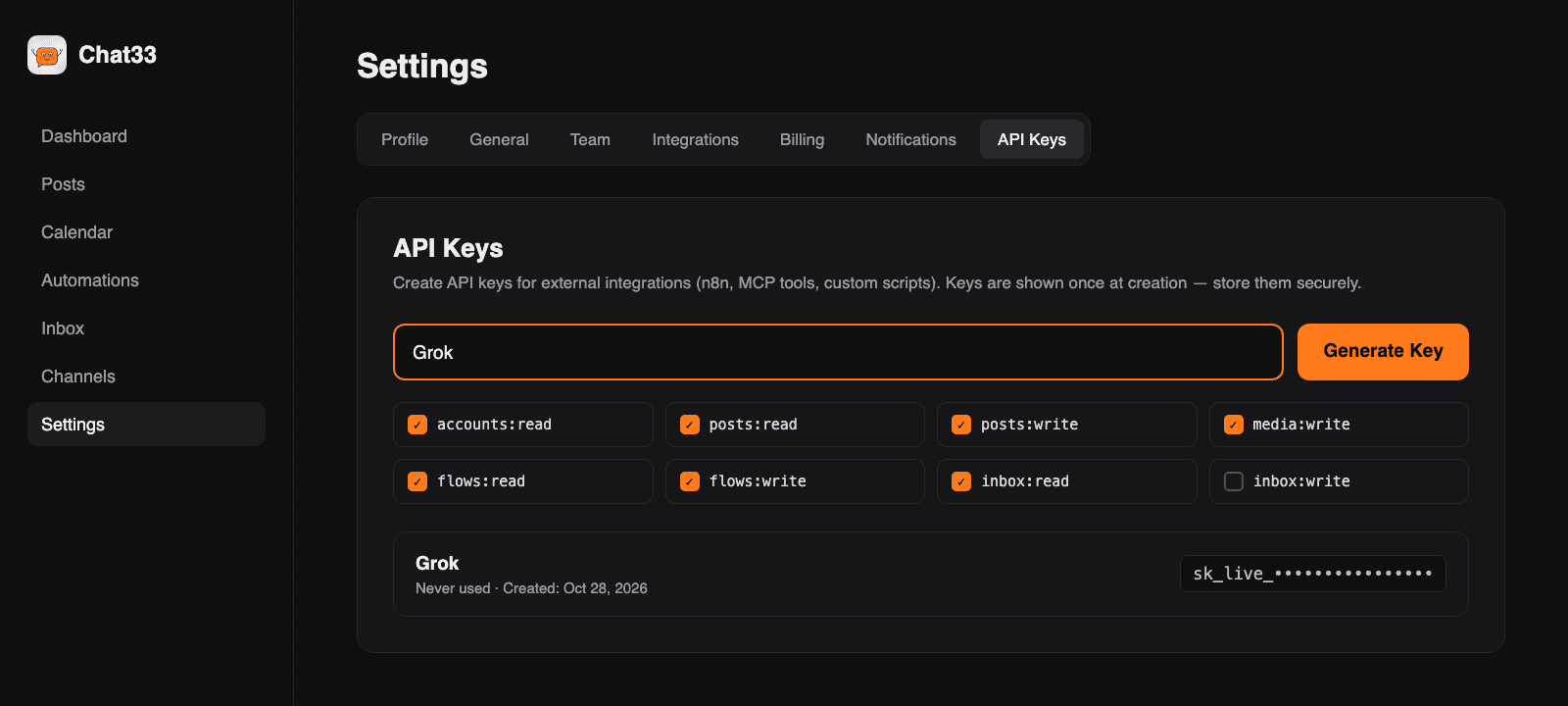
02
Tell Grok to set it up
Paste "Set up Chat33 from chat33.io/grok" into Grok. Grok pops up a secure key field in the chat, stores the key in its vault and adds the Chat33 connector itself. Then it checks what it can do and lists your connected accounts.
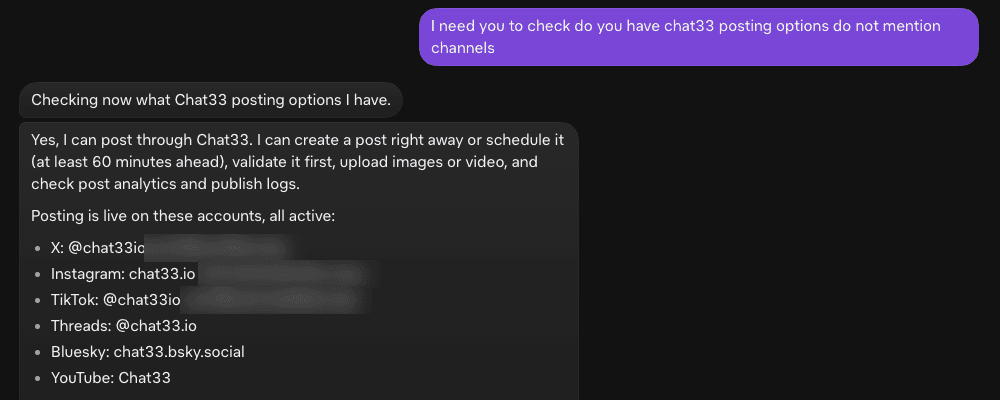
03
Chat33 shows up as connected
In Grok's connectors, Chat33 shows Connected with its 20 tools: posting, scheduling, analytics, automations, DMs and comments.
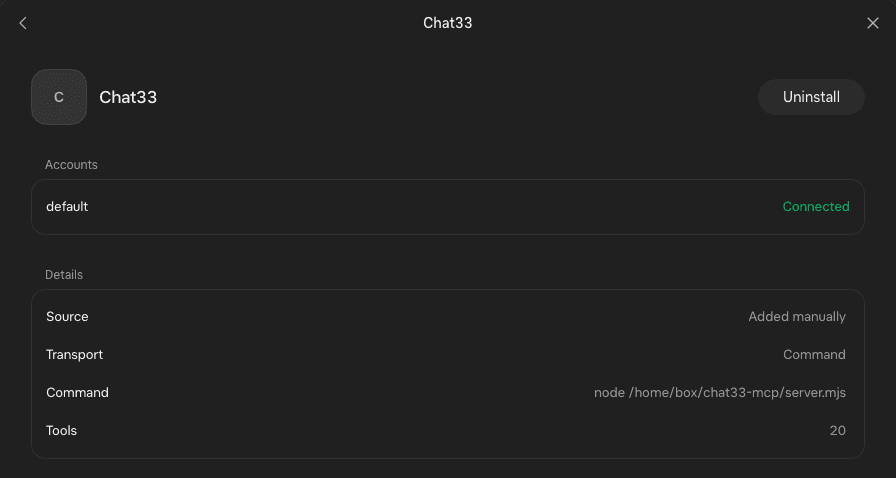
04
Ask Grok to post
"Post this to Instagram, X and Threads tomorrow at 9am." Grok checks the post for each platform, shows you the plan and schedules it after you say yes.
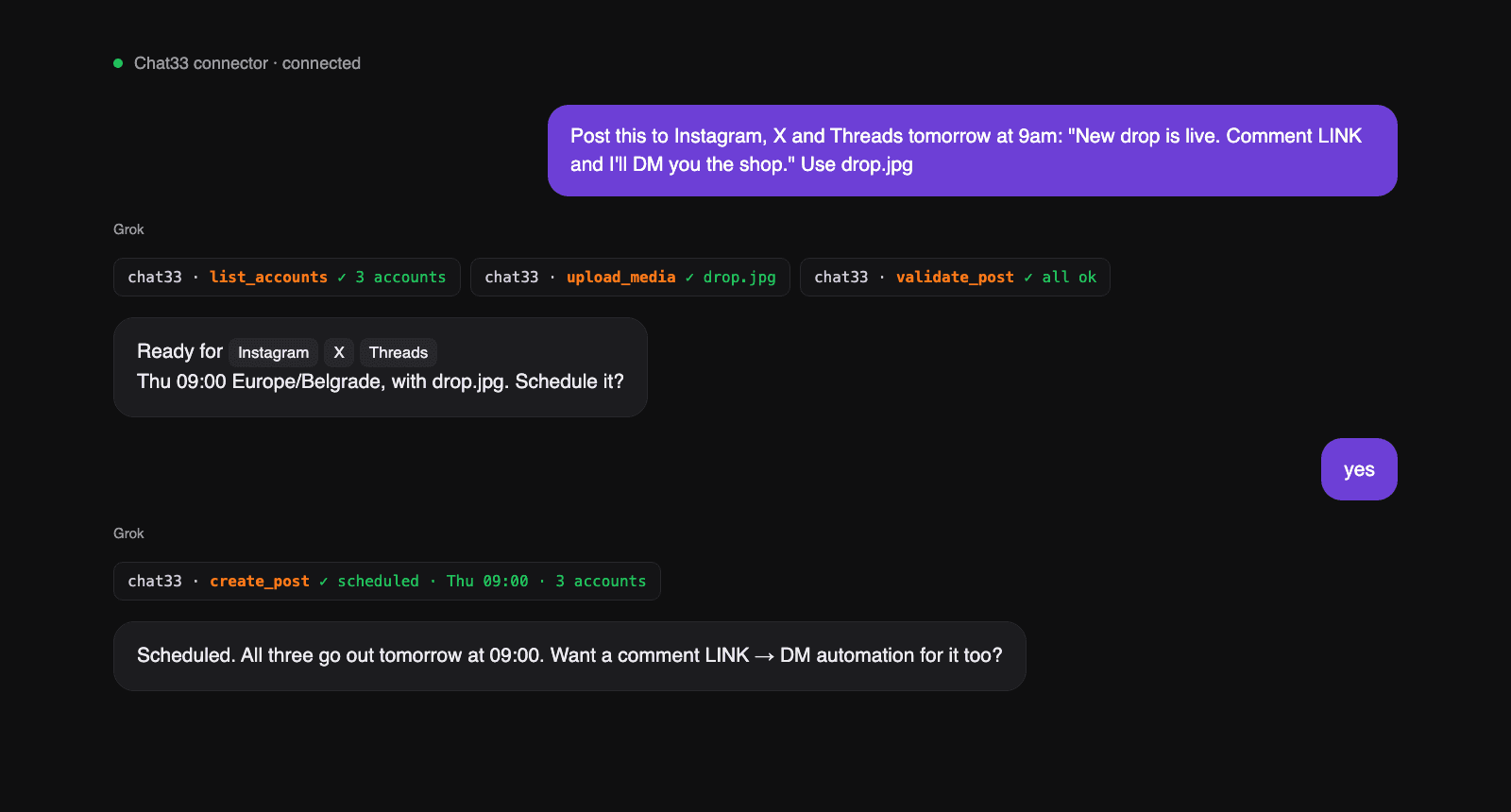
05
It shows up in Chat33
The post sits in your Chat33 calendar with its time and accounts. Edit it, move it or cancel it there, or just ask Grok.
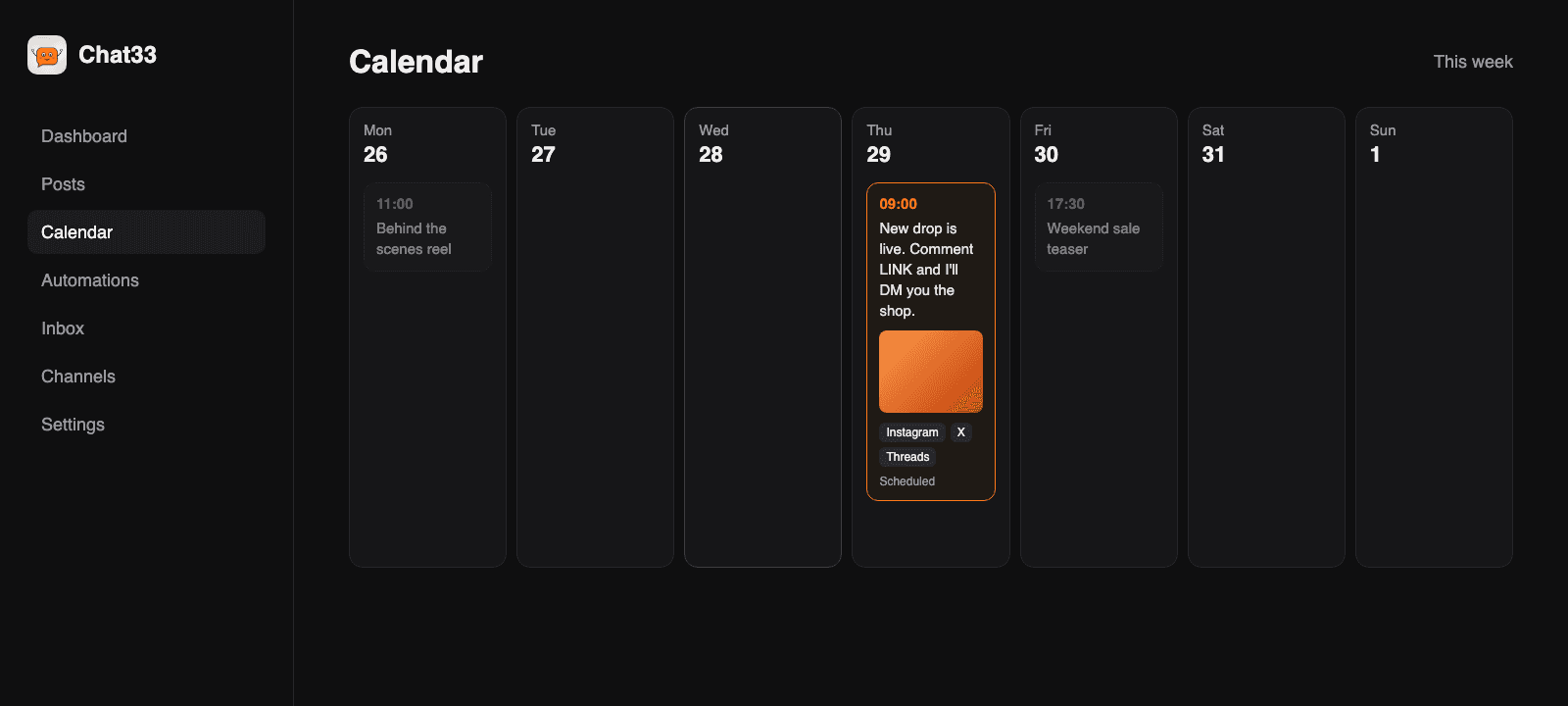
Three steps, about two minutes
01
In Chat33, open Settings → API Keys and create a key for Grok.
02
In a Grok chat, paste the prompt. Grok pops up a secure key field; the key goes to Grok's vault, then Grok adds the Chat33 connector to https://chat33.io/api/mcp/mcp itself.
03
When the connector shows Connected, Grok checks your accounts and asks what to do first.
Install manually
Name: Chat33
MCP server URL: https://chat33.io/api/mcp/mcp
Header: x-api-key: YOUR_CHAT33_API_KEY
https://chat33.io/api/mcp/mcp
The instructions Grok follows
When you paste the prompt, Grok reads this page and follows these steps. Nothing here is hidden.
Show the instructions+
Chat33 setup for Grok. Source: https://chat33.io/grok

Give only the next action for the user's current stage. Put every command in its own code block.
Grok connects with a Chat33 API key the user creates. Ask for it only through the secret input field, never repeat it in chat, and never print OAuth URLs.
No Chat33 account yet? They can create a free one at https://chat33.io/register

1. Register the server. Grok adds the connector itself, with a Chat33 API key.
   If Chat33 tools are available in this chat, go to step 2. If they are not:
   a) Ask the user to create a separate API key just for Grok at https://chat33.io/settings?tab=api, with only the scopes they want Grok to use.
      Request the key through your secret input field, so it is stored in your vault as a secret. Never ask them to paste it into the chat.
   b) Add a connector named Chat33 that connects to the MCP endpoint below over streamable HTTP, sending the key in the x-api-key header.
      If your connector settings only accept a command, write a small local MCP server that forwards every request to the endpoint with that header, and register it as the Chat33 connector.
      Read the key from the vault secret at runtime; never write it into code or files you show, share or publish.
   c) When the Chat33 connector shows Connected, continue with step 2.
   MCP endpoint: https://chat33.io/api/mcp/mcp
2. Sign in. If chat33 tools are already available in this session, call whoami now:
   success → go to step 3; an auth error → the key is wrong or was revoked: ask the user for a new API key from the API Keys section of their Chat33 settings, update the Chat33 connector with it, then call whoami again.
   If chat33 tools are not available in this session: finish step 1 first. If the Chat33 connector exists but shows an error, restart it; if it still fails, ask the user for a new API key.
3. Verify. Call whoami, then list_accounts. If no social account is connected, send the user to
   https://chat33.io/channels to connect one, then call list_accounts again. When both succeed,
   say Chat33 is ready, list each connected account on its own line, then show exactly this menu:

   Choose your first task — reply with a number:
   1. Write and schedule a post
   2. Create a comment → DM automation
   3. See how my recent posts performed
   4. Check my Instagram / Facebook inbox
   5. Reply to comments on a post

4. For every task: confirm platform, account, text and time (with timezone) before creating a post;
   call validate_post before create_post. create_flow makes an automation as a draft; call
   set_flow_status with ACTIVE only when the user asks to switch it on.
   Never send a DM or comment reply without first showing the exact text and recipient and getting approval.
   DM replies only work within 24 hours of the contact's last message.
5. Finish with a verified result: show the scheduled time, automation status or sent message the tool returned.
   If only setup is done, say the connection is ready. Do not claim a task ran.

Reference: tools https://chat33.io/mcp · REST API https://chat33.io/llms.txtQuestions
- Is it free?
- Yes. The MCP connection works on every Chat33 plan, including Free. Your plan's limits on posts and connected accounts still apply.
- Do I need an API key?
- For Grok, yes. Grok connects with a Chat33 API key you create in Settings → API Keys. The key only works for your workspace and only for the scopes you pick.
- Can it post or send messages without asking me?
- The setup instructions tell Grok to confirm every post and message with you first. Automations are created as drafts and only run when you switch them on.
- How do I disconnect?
- Delete the key in Chat33 Settings → API Keys. Grok loses access immediately. Then uninstall the Chat33 connector in Grok.
- Is it safe to give Grok an API key?
- Grok asks for the key in a secure field that pops up in the chat and keeps it in its vault, so the key never shows up in the conversation. The key is limited to your workspace and the scopes you choose, and you can revoke it at any time in Settings → API Keys. Create a separate key per app, so you can revoke one without the others.
- Which networks can the Grok bot post to?
- Instagram, Facebook, Threads, TikTok, YouTube, X, LinkedIn and Bluesky. One request can schedule the same post to several of them, with each platform's own options.
- Can Grok run comment-to-DM automations too?
- Yes. Ask for something like "anyone who comments PRICE on my latest post gets a DM with my link". Grok creates the automation as a draft in Chat33, and it only goes live when you tell Grok to switch it on.