AI-drafted social posts, approved by people: a safe setup for agencies
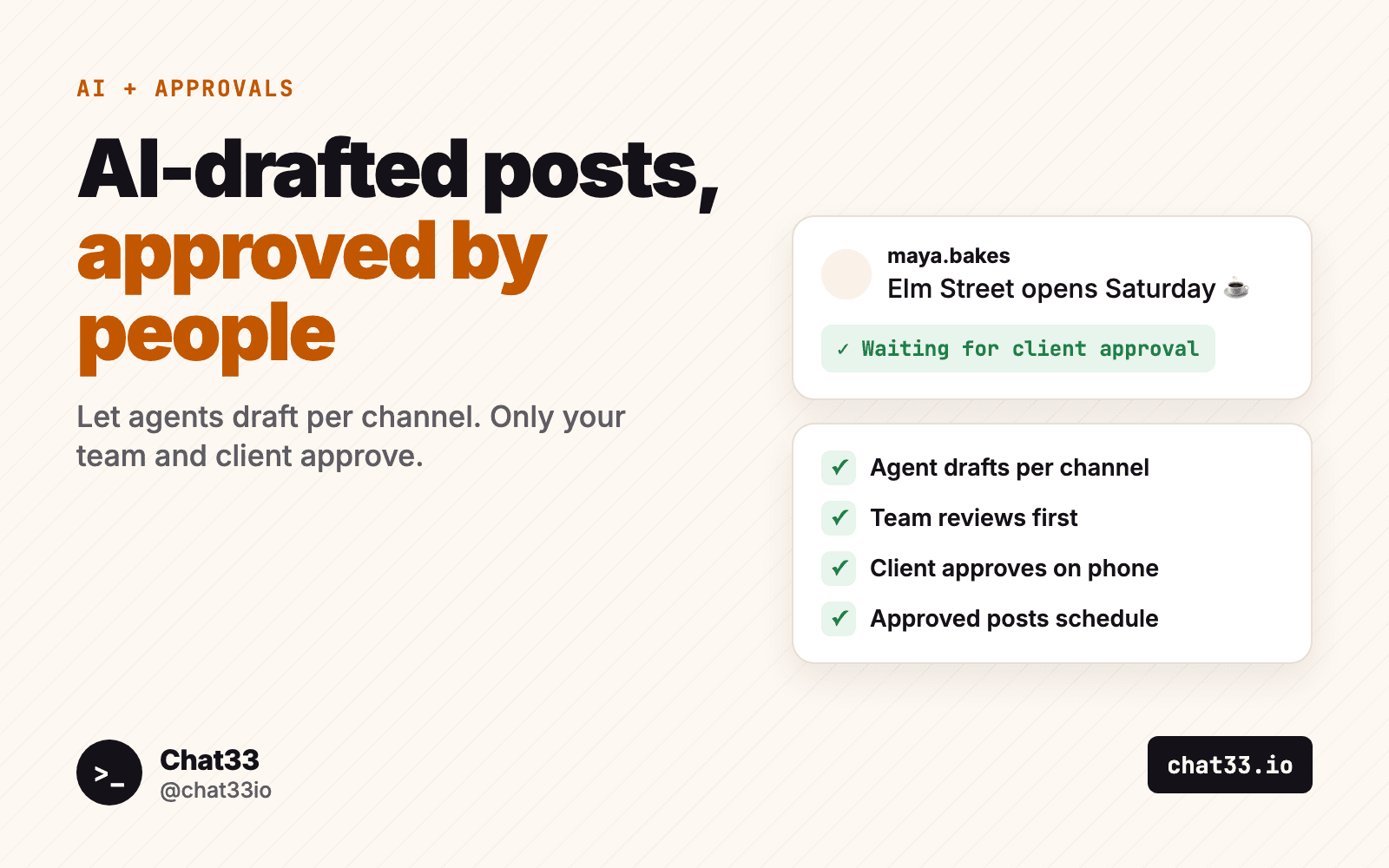
AI is good at the first draft of a social post. Give Claude or ChatGPT a product launch brief and it will hand back a LinkedIn post, an Instagram caption, a short X version and a TikTok hook in under a minute. For an agency writing for ten brands, that is hours saved every week.
The part that goes wrong is the last step. A draft that publishes on its own, from a client's account, without anyone reading it, is a risk no agency should take. This guide shows a setup where the agent does the writing and people do the deciding: the agent drafts per channel, sends the posts for approval, the client reviews them on their phone, and only approved posts get scheduled.
In short:
- Connect your AI agent to Chat33 through MCP or the API.
- Turn on client approvals in the client's workspace and set it to required.
- Ask the agent to draft one post per channel and send them for approval.
- Your team and the client review, comment and approve. Approved posts schedule themselves.
- Agents can draft and request approval. They cannot approve. Only a person can.
Why auto-publishing AI output is a bad idea
Language models write confident text. That is useful in a draft and dangerous in a published post. A few things that happen in practice:
- Wrong facts. A price from last quarter, a launch date that moved, a feature the product does not have. The model fills gaps with something plausible.
- Wrong voice. A brand that never uses exclamation marks suddenly has three in one caption. A serious B2B account gets a joke that lands badly.
- Wrong channel. The same text pasted to every platform, with hashtags on LinkedIn and a 600-word essay on X.
- Wrong timing. A cheerful promo scheduled on a day when the brand should stay quiet.
- Claims the client never signed off on. Health, finance and legal language is where one word can cause a real problem.
An agency owns the relationship. If an agent publishes something the client did not approve, it is still the agency's post. So the rule is simple: AI can write as much as you like, but every post that goes out from a client's account has been read and approved by a person.
The pattern: agent drafts, people approve, Chat33 schedules
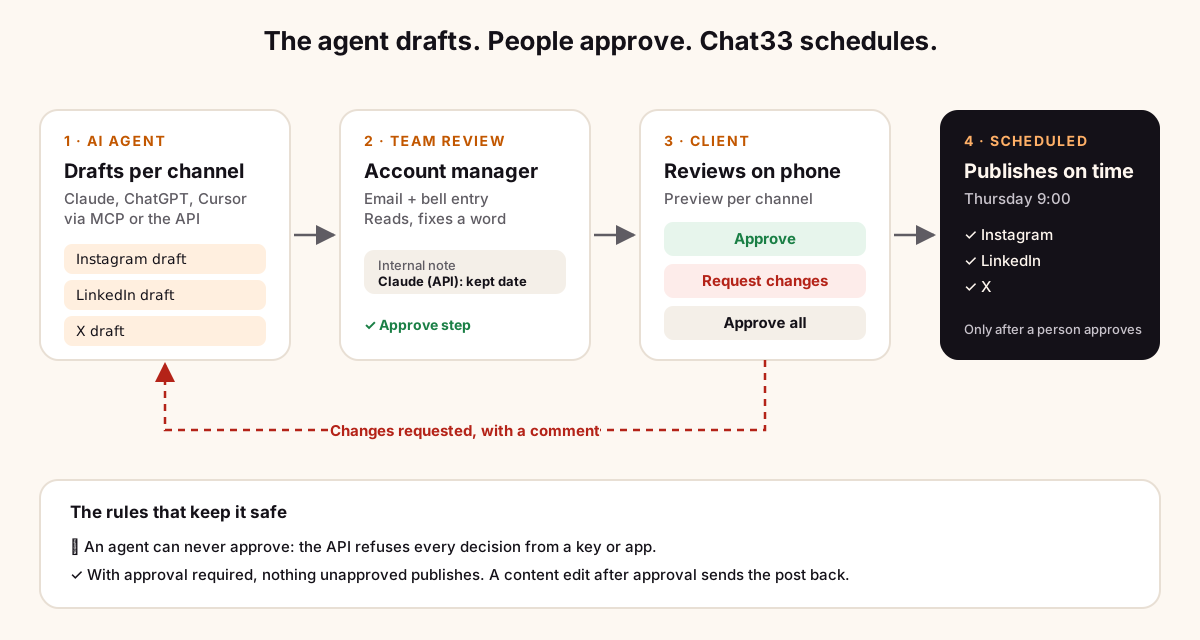
- The agent drafts. It writes a caption for each channel and saves the posts as drafts in the client's workspace, with the planned time attached. Nothing is scheduled yet.
- The agent sends them for approval. One request covers the whole batch, with a short note to the approvers.
- Approvers are notified. Each approver gets an email and an entry in the in-app bell.
- The team reviews first, if you want. You can set up to three steps, for example Review by your account manager, then Approval by the client.
- The client reviews on their phone. The approval page is built for mobile and shows a preview per channel. They can Approve, Request changes (a comment is required) or Approve all.
- Approved posts schedule automatically. After the final step, each post goes into the queue at its planned time.
If the client asks for changes, the post comes back to the team with the comment. Fix it by hand or ask the agent to rewrite it, then send it again.
Why only people can approve in Chat33
This is the part that makes the setup safe rather than just tidy. Agents connected to Chat33 can create drafts, send posts for approval, list approvals and add notes. They cannot make the decision. The API endpoint for approval decisions refuses every call from an API key or an OAuth app, always, with a "human decision required" error. There is no setting to change that.
So even if a prompt says "approve these and publish", or an agent loops and tries, the posts stay where they are until a person presses Approve.
Two more rules close the remaining gaps:
- In a workspace that requires approval, nothing unapproved publishes. If an agent calls create_post without asking for approval, the post is saved as a draft and sent for approval anyway.
- An edit sends it back. If anyone, person or agent, changes the content of an approved post, the post goes back for approval. Changing only the time keeps the approval.
You can always see which agent wrote what
Every draft and note an agent writes through the API is signed with the name of the key or app, followed by "(API)". In the post's thread your team sees exactly which connection made the draft, so "Claude (API)" and "Weekly content key (API)" are easy to tell apart.
The client sees an app's name, or just "API" for a key, never your internal key names. The thread also keeps the edit history and the approval history inline, so when a client asks "who changed this caption?", the answer is right there.
Agents can leave notes too. A note is internal by default: your team sees it, the client never does. That is a good place for the agent to explain its choices, such as "Shortened for X, kept the launch date from the brief, no discount mentioned because the brief did not include one."
Set it up in four steps
1. Give each client a workspace
In Chat33 an agency keeps one login and one bill, and each client gets a client workspace with its own channels, posts, team and brand color. Connect the client's Instagram, Facebook, LinkedIn, TikTok and other accounts inside that workspace. The agent will only see the channels of the workspace it is connected to.
2. Turn on approvals and make them required
In the client's workspace, open Settings, Approvals. Pick required, add your steps and approvers, and invite the client with the client role. A client takes no seat and only sees the posts sent to them. Client approvals covers every option, including "approvers must sign in".
If you only want approvals sometimes, pick optional. For AI-drafted content, required is the safer choice.
3. Connect your agent
The Chat33 MCP server works with Claude, ChatGPT, Cursor, Codex and any other MCP client. Most sign in through the browser, so there is no key to paste. There are short setup pages for Claude, ChatGPT, Cursor and Codex, and an overview of all supported agents.
If your own code drafts the posts, use the REST API with an API key instead. The same rules apply: drafts and approval requests are allowed, decisions are not.
4. Ask for drafts, not posts
The tools your agent gets for this:
| Tool | What it does |
|---|---|
create_post | Saves a post. With requestApproval: true it is saved as a draft and sent for approval in one call. |
request_approval | Sends drafts you already have to the approvers as one request, with a note. |
list_approvals | Shows what is waiting, what got changes requested and what was approved. |
add_post_note | Adds a note to a post's thread, internal unless you say the client may see it. |
An example prompt
Here is a prompt an agency could paste into Claude or ChatGPT with Chat33 connected. The agent is signed in to the client's workspace.
Brief: Northfield Coffee opens a second shop on Elm Street on Saturday, November 7.
First 100 customers get a free drip coffee. Opening hours 7am to 6pm.
Tone: warm, short, no exclamation marks, no emojis except one coffee cup.

1. List my connected accounts.
2. Write one post per channel: Instagram (caption for the storefront photo
   at https://example.com/elm-street.jpg), Facebook, LinkedIn and X.
   Each caption should fit its platform. Do not invent details beyond the brief.
3. Create each post for Thursday, November 5 at 9am, with requestApproval true
   and the approval message "Elm Street opening, 4 posts for Thursday".
4. On each post, add an internal note that says what you shortened or left out.
5. Then list approvals that are waiting and tell me what you sent.
What happens next: four drafts appear in the workspace, each signed by the agent. Your account manager gets the first step, reads them, maybe fixes a word. The client gets an email, opens it on their phone, sees each caption the way it will look on each platform, and approves. The posts are scheduled for Thursday morning. If the client writes "the free coffee is for the first 50, not 100", that post comes back with the comment, and you can ask the agent: "Read the changes requested on the Elm Street posts and fix them."
Tips for better AI drafts
- Give the agent a brief, not a topic. Facts, dates, offer, tone, words to avoid. The less it has to guess, the less it invents.
- Ask it to say what it left out. An internal note per post makes the review faster, because the reviewer knows where to look.
- One post per channel. Ask for a caption written for each platform rather than one text for all of them.
- Keep a short brand voice file. Paste it into the prompt or the agent's project instructions, so every draft starts from the same rules.
- Let the team step catch the obvious. A quick internal review before the client sees anything keeps the client's time for real decisions.
- Batch the week. One request with all of next week's posts is easier for a client to handle than ten separate emails.
FAQ
Can an agent approve its own posts?
No. Approval decisions through the API or MCP are always refused. Only a person signed in to Chat33, or a client using the review link from the approval email, can approve.
What if the agent forgets to ask for approval?
In a workspace set to required, a post created without a draft status or an approval request is saved as a draft and sent for approval automatically. It does not publish.
Does the client need a Chat33 account?
They need to be invited with the client role, which takes no seat. From the approval email they can press one button to review, with no password. The link expires after at most 14 days and only opens that workspace.
Which plans include this?
Client workspaces and approvals are on the paid plans. The MCP server and the API work on every plan. See pricing for what each plan includes.
Which platforms can the agent draft for?
Any channel connected in the workspace: Instagram, Facebook, TikTok, YouTube, X, LinkedIn, Threads and Bluesky.
The short version
Let the agent write. Do not let it publish. Connect it to the client's workspace, make approvals required, and ask it for drafts with an approval request. Your team and your client read every post, the thread shows which agent wrote what, and Chat33 only schedules what a person approved.
Schedule LinkedIn posts with Chat33Plan, approve and schedule LinkedIn posts next to Instagram, Facebook, TikTok, YouTube, X, Threads and Bluesky, from one workspace per client.