How to manage multiple client social media accounts without mixing them up
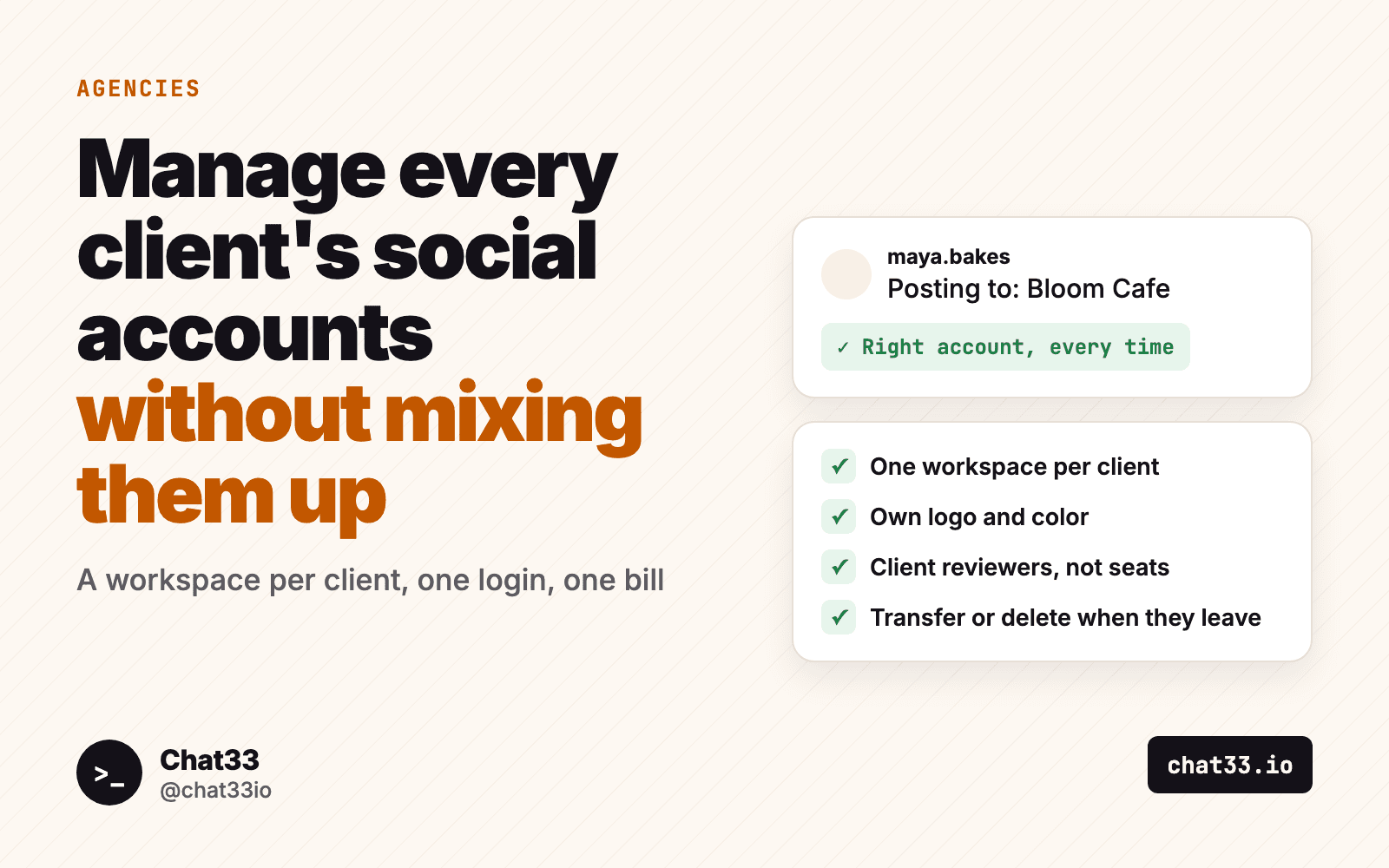
Running social media for one brand is a job. Running it for six brands is a different job, and most of the work is not writing posts. It is making sure the cafe's post goes to the cafe, the gym's DMs stay with the gym, and the freelancer who left in March can no longer open the law firm's Instagram.
This guide is for agencies and freelancers who manage multiple Instagram accounts for clients, plus their Facebook Pages, TikTok, LinkedIn and the rest. It covers why one shared account goes wrong, a setup that keeps every client apart, who to invite where, how billing works, and what to do when a client leaves. The last section walks through it step by step in Chat33.
In short:
- Give every client their own workspace: own channels, posts, DM flows, inbox and team.
- Name each workspace after the client and give it the client's logo and color, so you always see where you are.
- Invite your team by role, and the client as a reviewer who takes no seat.
- Keep billing on one agency plan. Extra workspaces are $10 a month.
- When a client leaves, transfer the workspace to them or delete it, with 7 days to change your mind.
Why one account for every client goes wrong
The simple start is one login with every client's channels connected side by side. It works with two clients. Around the fourth or fifth, three problems show up.
The wrong account posts. A scheduler that lists twelve Instagram accounts in one dropdown is one misclick away from a skincare promo going out on a law firm's page. Nobody does it on purpose. It happens on a Friday afternoon, in a batch of thirty posts.
DMs and comments get mixed. One inbox for every brand means a reply meant for one client's customer can go out from another client's account. Comment-to-DM automations get worse: a keyword like PRICE can exist for three clients at once, and you need to know which flow belongs to whom.
Access never ends. Everyone on the team sees every client, so a freelancer hired for one brand can open all of them. When that person leaves, or a client ends the contract, there is no clean line to cut. Passwords get shared, and nobody is sure who still has them.
The fix is not more care. It is a structure where each client lives in its own space and mistakes across clients are hard to make.
The setup: one workspace per client
A workspace is a separate home for one client. In Chat33, each client workspace has its own:
- connected channels (Instagram, Facebook, TikTok, YouTube, X, LinkedIn, Threads, Bluesky)
- posts, drafts and calendar
- comment-to-DM flows and keywords
- inbox for DMs and comments
- team and client reviewers
- logo and brand color
Your agency keeps one main workspace, and every client workspace sits under it. You sign in once and switch between clients from the sidebar. When you switch, a full-screen "Switching to Bloom Cafe" screen makes the change hard to miss.
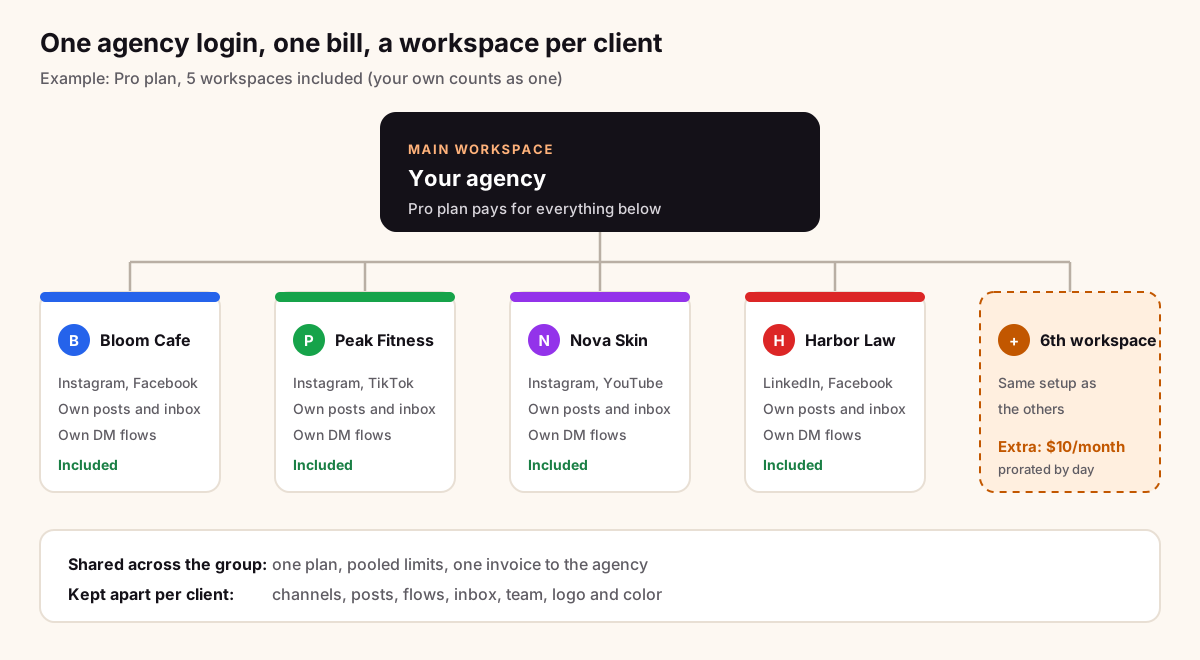
Inside one workspace, the composer only offers that client's accounts, and the inbox only shows that client's conversations. A post cannot go to the wrong brand, because the wrong brand is not in the list.
Agency workspaces has the full feature page.
Names, logos and colors that prevent mistakes
Most wrong-account mistakes happen when two things look the same. Make every workspace look different at a glance.
Name it after the client, as they say it. "Bloom Cafe", not "Client 3" or "BC-2026". Your team should never need a lookup table. If you run two brands for one company, name both: "Harbor Law" and "Harbor Law Careers".
Upload the client's logo. It appears in the sidebar, the workspace switcher and the switching screen. Without a logo the workspace shows its first letter on the brand color, which works, but a logo is faster to recognize.
Pick a different color for each client. Use the client's own brand color when you can. If two clients are both blue, pick a second color for one of them. The point is that you can tell where you are without reading.
Keep your own brand in the main workspace. If the agency posts for itself, do it from the main workspace, so your own content never sits next to a client's.
Who to invite to each workspace
There are two kinds of people: your team, who do the work, and the client, who reviews it.
Your team joins with a role:
- Admin: manages everything in the workspace, including settings and the team.
- Member: writes and schedules posts, runs flows, answers the inbox.
- Viewer: can see the workspace and change nothing. Useful for a junior who is learning, or a stakeholder who wants to watch.
People you add in the main workspace can be given "Access to all workspaces", so a lead strategist or account manager has the same role in every client without a separate invite each time. Owners and admins of the main already have it. A freelancer who works on one brand should be invited only to that workspace.
The client joins as a client reviewer. A client takes no seat on your plan, sees only the posts sent to them for review, and needs no password: they can open the approval email and press one button to review. They cannot see your other clients, your flows or your inbox.
If your clients sign off on posts before they go out, turn on approvals for that workspace: off, optional or required, with up to three steps such as Review and then Approval. In a workspace that requires approval, nothing unapproved publishes. Client approvals explains the whole flow.
Connecting each client's accounts
Connect each client's accounts inside that client's workspace, not the main. Switch to the workspace first, then open Channels and connect. For Instagram, the client's account needs to be a business or creator account linked to a Facebook Page.
The usual way to get access is to ask the client to add you to their Facebook Page or Business account, then connect from your login. Never ask for their password.
If you try to connect an account that is already connected in another one of your workspaces, Chat33 says which workspace it is in and offers to switch there. That catches the common slip of connecting a client's Instagram in the main workspace by accident, or connecting it twice.
Instagram in Chat33Schedule posts, answer DMs and comments, and run comment-to-DM flows for each client's Instagram account, inside that client's workspace.
Billing: one plan, included workspaces, $10 extras
The client workspaces do not each need a subscription. Your agency's plan pays for the whole group, and the plan's limits (channels, contacts, flows, team members) are pooled across all workspaces.
Each paid plan includes a number of workspaces, and your own main workspace counts as one:
| Plan | Workspaces included |
|---|---|
| Starter | 2 |
| Pro | 5 |
| Business | 10 |
| Enterprise | 20 |
Client workspaces are not available on Free. Past the included number, each extra workspace costs $10 a month, prorated by day. Chat33 shows the price and asks you to accept it before anything is charged. The pricing page has the current plans.
If the agency plan lapses, workspaces over the limit pause. A paused workspace shows a banner, holds its scheduled posts and sends no DMs. When the plan is back, everything resumes and the held posts publish. Nothing is lost, but it is worth keeping the card on file current.
When a client leaves: transfer or delete
Contracts end. Decide early which way you will handle it, and put it in your contract, so nobody argues about the Instagram account in the last week.
Transfer the workspace to the client when they want to keep running it. The owner of your main workspace confirms with an email code, and the client gets a link that is good for 14 days. When they accept, the workspace moves to their own Chat33 account: channels and active flows carry over, your team loses access, and the client lands on the Free plan, where they pay nothing unless they upgrade. A workspace can be handed over once nothing is in progress, and Chat33 lists anything you need to finish first.
Delete the workspace when the client takes everything elsewhere. Only the owner of the main workspace can do it. Chat33 first shows what stops (channels disconnected, active flows paused, queued posts cancelled, team members removed, API keys revoked), then asks for the workspace name and a 6-digit code sent by email. For 7 days you can restore it from Manage workspaces. After that it is removed for good. A restored workspace comes back with its channels to reconnect and its flows paused, so you switch things back on deliberately.
Either way, access ends cleanly. Nobody keeps a login to a brand they no longer work for.
Step by step in Chat33
- Pick a paid plan on your main workspace. Starter includes 2 workspaces, Pro 5, Business 10, Enterprise 20, your own included.
- Open the workspace switcher in the sidebar and choose New workspace. Type the client's name and press Create workspace. If your included workspaces are in use, Chat33 shows the $10 a month price and asks you to agree before it creates the workspace.
- Set the look. In the new workspace, open Settings, find the workspace look card, upload the client's logo (PNG, JPEG or WebP, up to 2 MB) and pick a color.
- Connect the client's channels. Still inside the client workspace, open Channels and connect their Instagram, Facebook Page, TikTok and any others.
- Invite the team. Add the people who work on this client as Admin, Member or Viewer. For people who work on every client, turn on Access to all workspaces from the main workspace's team page instead.
- Invite the client as a client reviewer, and set approvals to optional or required if they sign off on posts.
- Build the client's flows in that workspace: comment-to-DM keywords, welcome messages, lead capture. They only answer on that client's accounts.
- Repeat for the next client. Use Manage workspaces in the switcher to see every workspace with its channels, team and status, and to delete or restore one.
- When a contract ends, open Manage workspaces and choose Transfer to client or Delete on that workspace's row.
FAQ
How many Instagram accounts can I manage for clients?
It depends on your plan's channel limit, which is pooled across all your workspaces, and on how many workspaces you have. A client can have several accounts connected in their one workspace.
Does my client need to pay for Chat33?
No. Your agency plan pays for the client workspaces. A client only pays if you transfer the workspace to them and they choose to upgrade from Free.
Do client reviewers count as team seats?
No. A client reviewer takes no seat and only sees the posts sent to them.
What happens to scheduled posts if I delete a client workspace?
Queued posts are cancelled and flows are paused right away. A post already handed to Facebook or YouTube for scheduling may still go live there, and Chat33 warns you about those before you delete.
The short version
Mixing every client into one account works until it does not: a post on the wrong page, a reply from the wrong brand, an old freelancer who still has access. Give each client its own workspace with a clear name, logo and color, invite your team by role and the client as a reviewer, keep billing on one plan, and decide up front whether a departing client gets their workspace or it gets deleted. Read more about agency workspaces and client approvals, or compare the plans.