How to hand over social media accounts to a client
Every agency contract ends at some point. The client hires someone in house, the budget moves, or the work simply runs its course. How you leave matters as much as how you started: a messy handover is what the client remembers, and it is often what they tell the next agency about you.
The trouble is that social media work spreads across a lot of places. Logins, page roles, scheduled posts, DM automations, the inbox, saved replies, API keys for a reporting tool. When nobody owns the list, something always gets missed.
This guide is a practical offboarding plan: what a clean handover includes, a checklist you can copy, the mistakes that cause trouble later, and how the transfer works if you run your clients in Chat33.
In short:
- Agree on a handover date and who on the client side takes over.
- Finish or cancel everything that is scheduled to happen after that date.
- Move the accounts, the automations and the inbox history together, not one by one.
- Remove every agency person and every agency tool, on the same day.
- Write down what you handed over and send it to the client.
What a clean handover includes
A handover is not just "here are the passwords." The client should be able to keep running everything the day after you leave, without calling you. That means five things.
1. Account access, owned by the client
The client should own every account in their own name: the Instagram professional account, the Facebook Page, the TikTok account, the YouTube channel, the LinkedIn page, X, Threads and Bluesky. If you created any of them, make sure the client's email and phone are on the account, not yours.
On platforms with roles (Facebook Pages and business portfolios, LinkedIn pages, YouTube channel permissions), the client should be the admin before you remove yourself. Never remove your own access first and hope they already have it.
2. Scheduled posts that are accounted for
Look at everything planned after the handover date. For each post, decide with the client: publish it before you leave, hand it over as a draft, or cancel it. A post that goes out two weeks later, with an offer that expired or a tone the new team does not like, is an awkward way to be remembered.
Remember posts scheduled natively inside a platform too. A video scheduled in YouTube Studio or a post scheduled on a Facebook Page will still go live, whatever tool you used to schedule it.
3. Automations that keep running
This is the part agencies forget most. If you set up comment-to-DM flows, keyword replies, welcome messages or lead capture, those are working for the client right now. Someone comments PRICE on a reel from three months ago and gets the price list in a DM. If the automation lives in your agency account and you disconnect, that stops the day you leave, and nobody notices until a customer complains.
List every active automation, what it does, which post or keyword starts it, and where its leads go. Then move it with the account, so it keeps running.
4. Inbox history and contacts
The DM history is customer history. Past questions, complaints, orders, the person who asked about wholesale last month. Instagram and Facebook keep the conversations on their side, but notes, tags, assignments and collected emails usually live in the tool you used to answer them. If you hand over the accounts but keep the tool, the client loses all of that context.
5. Agency staff and agency tools removed
When the handover is done, nobody from the agency should still have access. That includes the freelancer who helped for two months, the intern who left last year, and every tool that holds a token: schedulers, reporting dashboards, API keys, webhooks that send leads to your CRM instead of theirs.
The handover checklist
Copy this into your project tool and work through it with the client.
Two weeks before
- Confirm the handover date and the person who takes over on the client side.
- Make sure the client is an admin or owner on every platform and every Facebook or LinkedIn page.
- List all scheduled posts after the date, and decide: publish, draft or cancel.
- List all active automations, their keywords and where their leads go.
- Export any reports the client paid for.
Handover week
- Publish or cancel what was agreed. Turn the rest into drafts.
- Move the accounts and automations together, with their inbox history.
- Point lead destinations (CRM, email list, webhooks) at the client's own tools.
- Hand over brand assets: logo, colors, templates, saved captions, hashtag sets.
- Walk the client through one live automation so they know where it is.
Handover day
- Remove every agency person from every platform role and every tool.
- Revoke agency API keys, connected apps and webhooks.
- Change any shared passwords the agency ever knew, and turn on two-factor authentication with the client's own phone.
- Send the client a short written summary: what moved, what was cancelled, what is still running.
Common mistakes
Passwords in a spreadsheet
A shared sheet with every login is convenient on day one and a liability forever after. It gets copied, forwarded, and kept in someone's downloads folder long after the contract ends. Platform roles and proper team access exist so nobody needs the password. If a password was ever shared, change it at handover.
Automations that stop the day you leave
The agency disconnects its tool, and every comment-to-DM flow stops with it. The posts still say "comment GUIDE," people still comment, and nobody gets the DM. The client finds out from an annoyed follower, weeks later. Move automations with the account, or at least hand the client a written list so they can rebuild them before you disconnect.
Leaving ex-staff with access
People leave agencies all the time, and their access to client pages often stays. Six months later a former contractor can still post on a brand's Facebook Page. At handover, go through every role list on every platform, not only the ones you remember adding.
Handing over the accounts but keeping the history
The client gets the logins but not the conversations, the tags, the contacts or the emails collected in DMs. They start from zero with an audience that remembers talking to them.
Leaving surprises in the queue
A post scheduled for next month, a broadcast set to go out on Friday, a DM sequence still waiting on someone. Anything that happens after you leave happens in the client's name, with nobody watching.
How the transfer works in Chat33
If you run clients in Chat33, each client already sits in its own client workspace, with its own channels, posts, comment-to-DM flows, inbox, team, logo and brand color. That makes the handover one action instead of a checklist of reconnections: you transfer the whole workspace to the client's own Chat33 account.
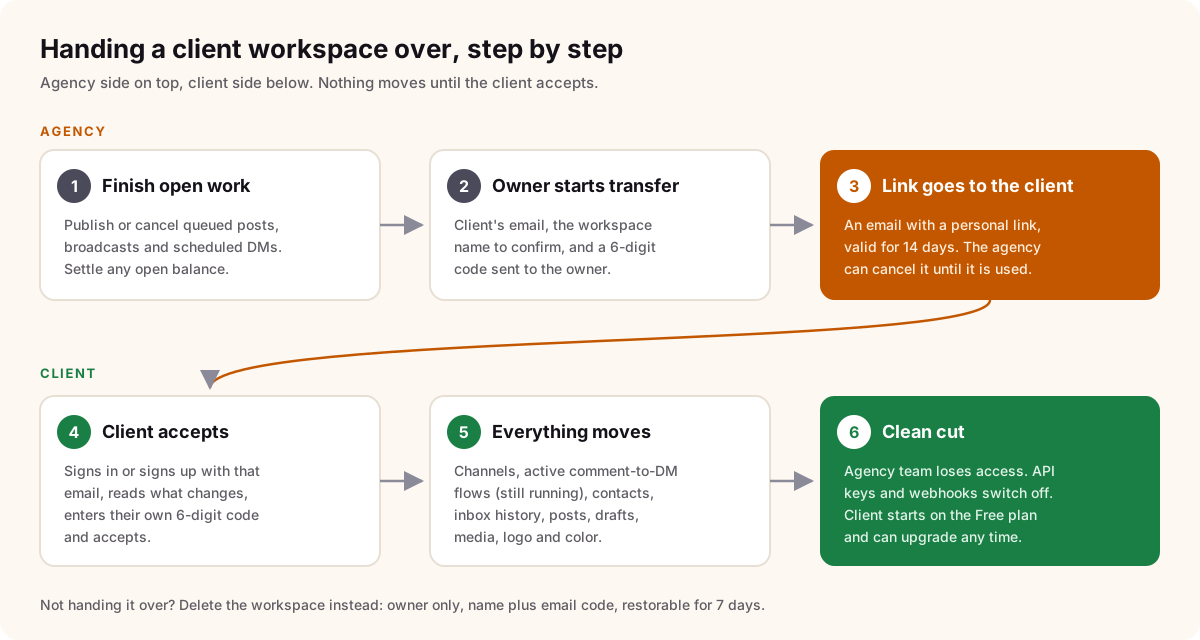
- Finish what is still in progress. Open Manage workspaces and press Transfer to client. Chat33 first checks what is still in flight: posts waiting to publish, broadcasts, scheduled messages, and any billing that needs settling. Each one has a Fix button. A workspace can only be handed over once nothing is pending, so nothing goes out in the client's name after you leave.
- The owner confirms. Only the agency's owner can start a transfer. You enter the client's email, type the workspace name to confirm, and enter a 6-digit code sent to your email.
- The client gets a link. It is valid for 14 days. You can cancel it until the client uses it.
- The client accepts. They sign in or create a Chat33 account with that exact email, see a plain summary of what they get and what changes, confirm their address with their own 6-digit code, and accept.
- Everything carries over. Connected channels, flows with their templates and tags, contacts and the inbox history, published and draft posts, media, logo and color. Active comment-to-DM flows keep running through the handover, so a comment on an old post still gets its DM.
- The agency is out. You and everyone on your team lose access to the workspace. API keys, developer API profiles, lead destinations, the message webhook and apps your team connected are switched off, so nothing keeps sending data to agency tools. People in the workspace who were never on your team (for example the client's own staff) keep their access, and the client can remove them in Settings.
The client starts on the Free plan on their own account and pays nothing unless they upgrade. Your plan covers the workspace up to and including the day they accept. If the workspace is bigger than the Free limits (more channels or flows than Free allows), it is paused after the handover until the client upgrades, and the screen tells both sides before anyone accepts. The client can see the plans on the pricing page.
If a channel was connected with your login rather than the client's, ask the client to reconnect it with their own account after the handover. The transfer screen points this out for each channel.
When the client does not want the workspace
Sometimes the client is moving to another setup and only needs the platform accounts, which they already own. In that case you can delete the workspace instead. Only the owner can do it: you type the workspace name and a 6-digit code from your email. Chat33 then pauses the flows, cancels scheduled posts, disconnects channels and removes members and keys. The workspace can be restored for 7 days, in case someone changes their mind, and is removed for good after that.
Client approvals after the handover
If the client reviewed your posts through client approvals while you worked together, those approval settings live in the workspace. After the transfer the client owns them, and can keep using approvals for their own team or switch them off in Settings.
FAQ
Does the client need to pay to take over the workspace?
No. The workspace moves to their own account on the Free plan. If it is over the Free limits, it stays paused until they upgrade or reduce it.
Do comment-to-DM flows keep working after the handover?
Yes. Active flows carry over and keep running. The client can pause any they do not want from Flows.
What happens to posts we scheduled in Chat33?
They have to be published or cancelled before the transfer can start. Posts that were already handed to Facebook or YouTube as native scheduled posts will still go live there.
Can we keep read-only access after the handover?
No. Everyone on the agency's team loses access. That is the point of a clean handover: the client knows exactly who can post in their name.
What if the client never accepts?
The link expires after 14 days and nothing changes: the workspace stays with the agency. You can send a new link or delete the workspace.
The short version
A good handover moves the accounts, the automations and the history together, cancels anything that would surprise the client later, and removes every agency person and tool on the same day. Do it from a written checklist, not from memory. If your clients live in their own Chat33 workspaces, the transfer does most of it for you: one owner code, a 14-day link, and the client takes over with everything still running.
Instagram comment-to-DM in Chat33Comment-to-DM flows, scheduling and the inbox for each client's Instagram, in a workspace you can hand over when the contract ends.